Elevate Your Palmstreet Live Shows with OBS
Palmstreet sellers can now take their live streaming to the next level by using OBS (Open Broadcast Software) to broadcast video directly from a computer. Sellers also have the flexibility to choose an external audio source when starting their show via the web.
Step 1: Download OBS
Visit the official OBS website, and select your operating system (Windows, macOS, or Linux) to download the software.
Step 2: Configure Post-Installation Settings
After installing OBS, adjust the following settings to optimize your streaming quality.
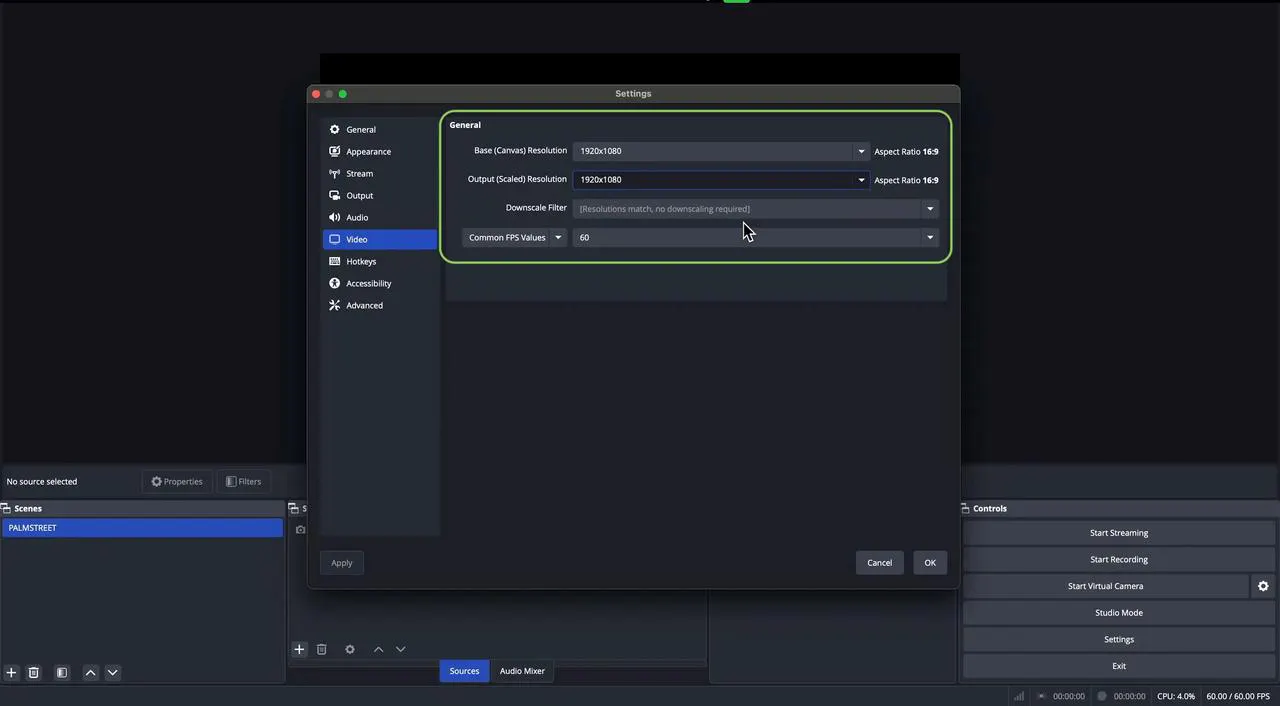
Video Settings
- Navigate to Settings > Video.
- Configure:
- Base (Canvas) Resolution: 1920x1080p
- Output (Scaled) Resolution: 1920x1080p
- Common FPS Values: 60
General Settings
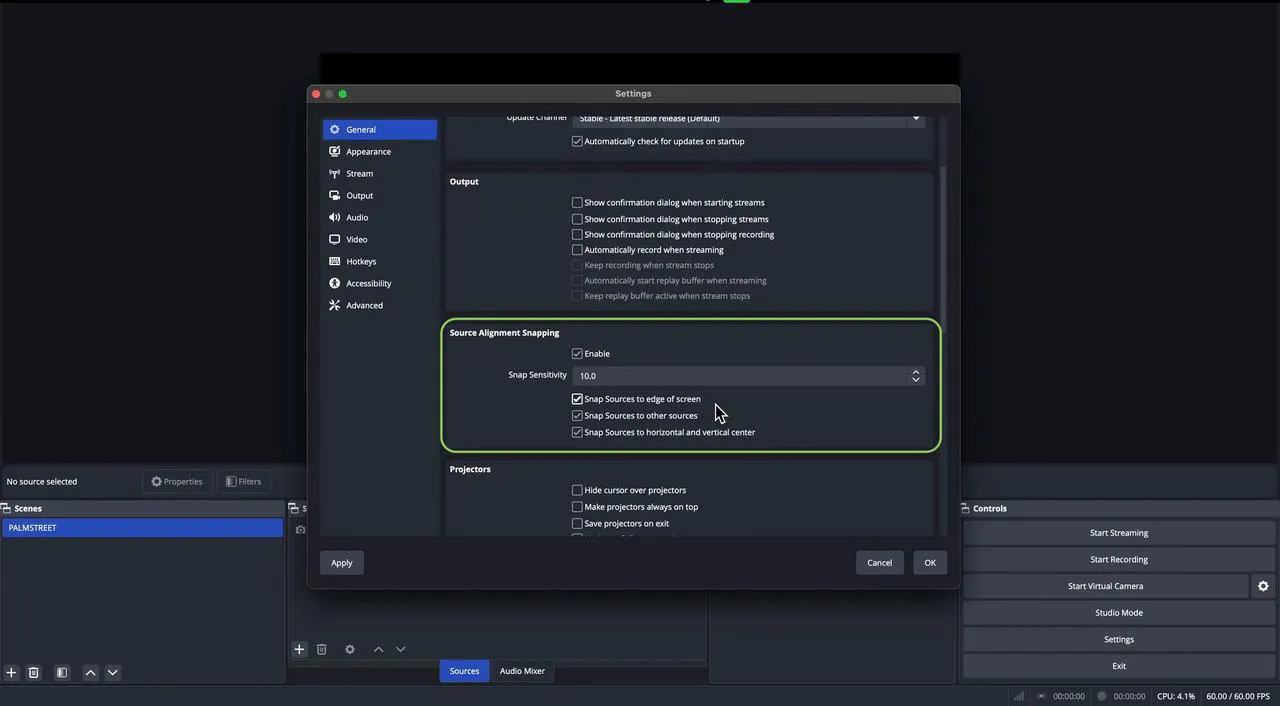
- Navigate to Settings > General > Source Alignment Snapping.
- Set Snap Sensitivity to 10.
- Make sure your source alignment settings are all enabled here, as this will make it way easy to center your sources.
Step 3: Add Sources to Your Stream
Creating Scenes and Sources
Scenes group your sources, allowing you to seamlessly switch between different configurations.
- In the Scenes section, right-click and select Add Scene.
- Name your scene and confirm.
- Drag and arrange your sources (e.g., images, videos, or screen captures) onto the scene.
Step 4: Adjusting Display Capture Dimensions
This step is essential to ensure your OBS canvas is properly displayed on your Palmstreet stream. The primary source you just created will serve as the foundation for all additional sources you include. It provides a clear view of what will appear on your stream.
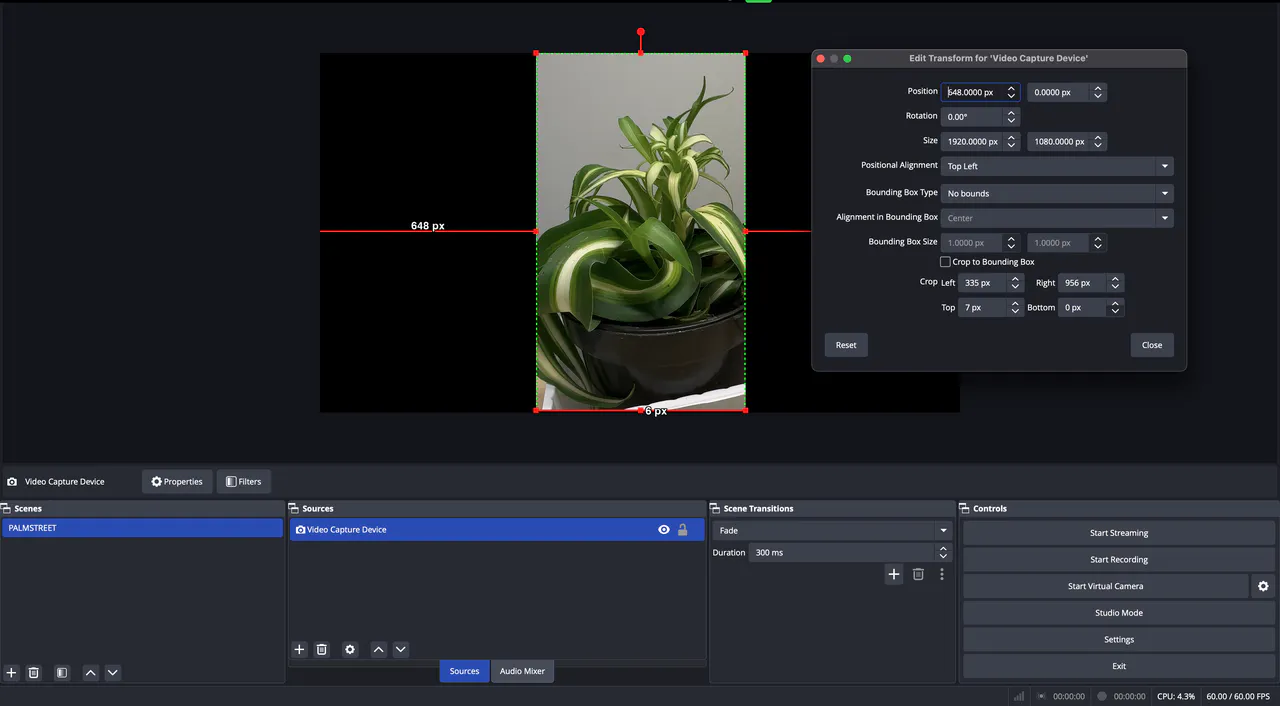
Begin by resizing the source you added, making it slightly smaller, and then dragging it to the center of the canvas. It should automatically snap into place along both the horizontal and vertical axes. Next, adjust the source so it stretches to touch both the top and bottom edges of your canvas. The snapping feature will help ensure precision. Once the main source is centered and expanded to fit the top and bottom of your canvas, you’ll have an accurate representation of what will appear in your stream on Palmstreet.
To manually resize the height and width of your display capture:
- Use Command + Option (on macOS) to scale your display elements.
- Or Right Click on the Source, Transform -> Edit Transform to scale your display elements
Step 5: Log In to Seller Hub
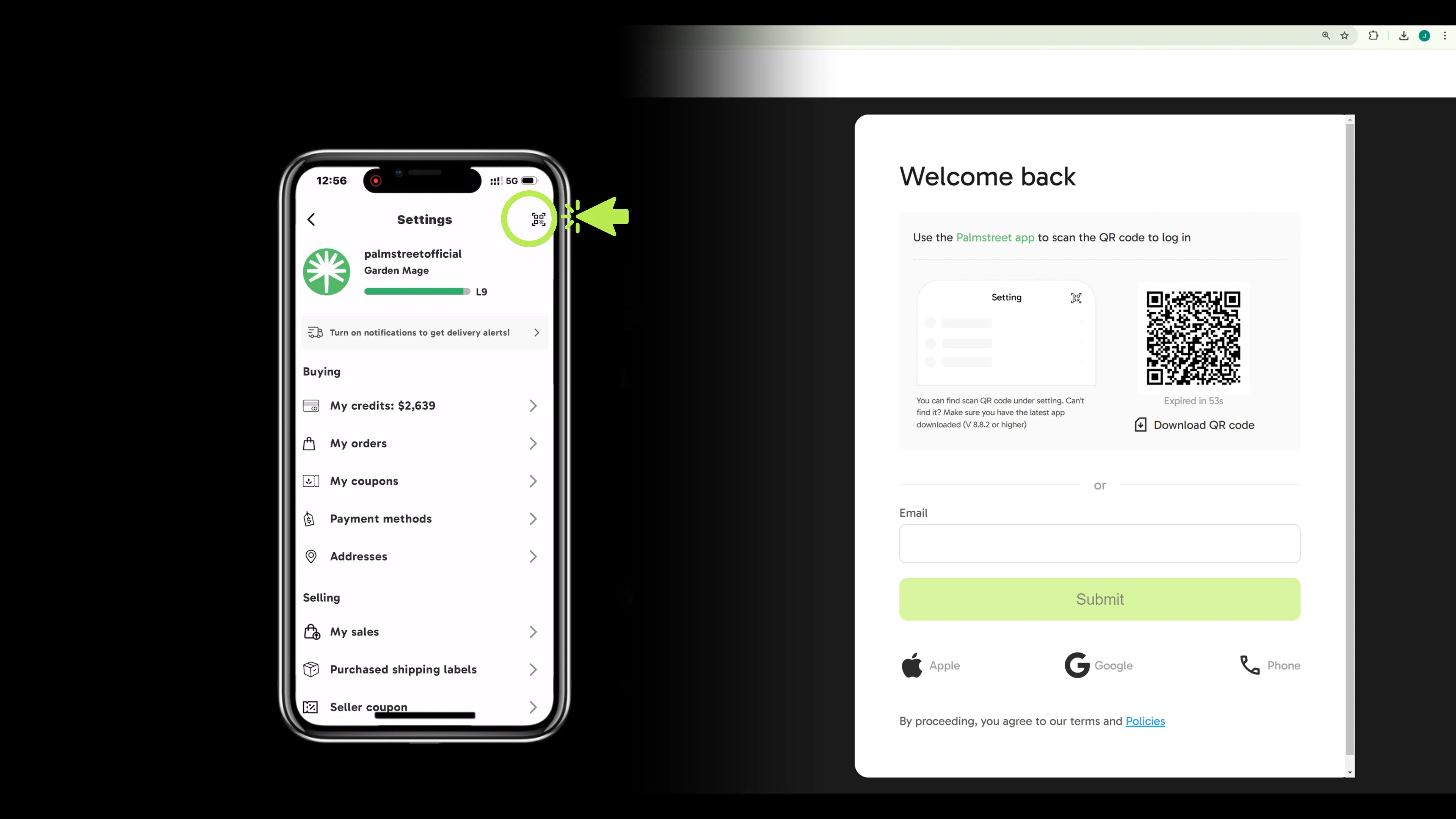
Head over to the Palmstreet Seller Hub and log into your seller account. You can do this quickly by scanning the QR code provided.
- Open Palmstreet mobile app, go to the Settings page and tap the "Scan QR code" button at the top right corner.
Step 6: Connect Your OBS Virtual Camera and Audio Device
- Ensure you’ve authorized Google Chrome to access your camera and microphone.
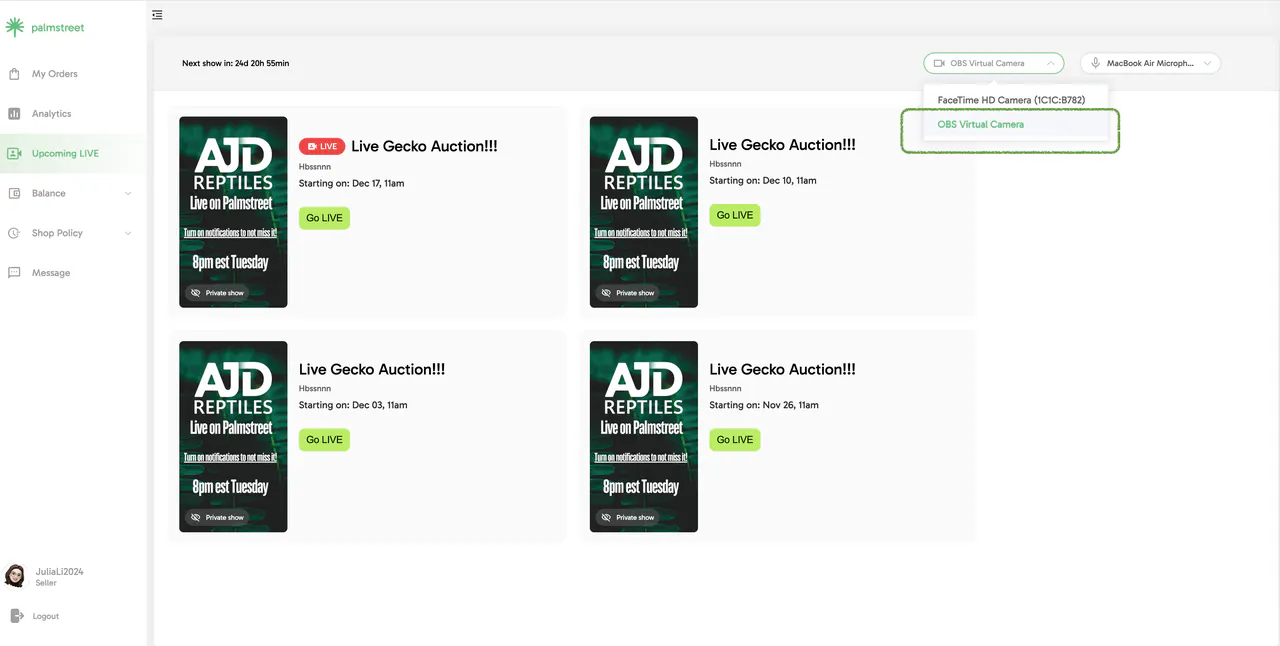
- In the device settings, select OBS Virtual Camera as your primary video device.
- Choose your preferred audio input to match your external setup.
Step 7: Start Your Virtual Camera
Once your setup is ready, it's time to go live!
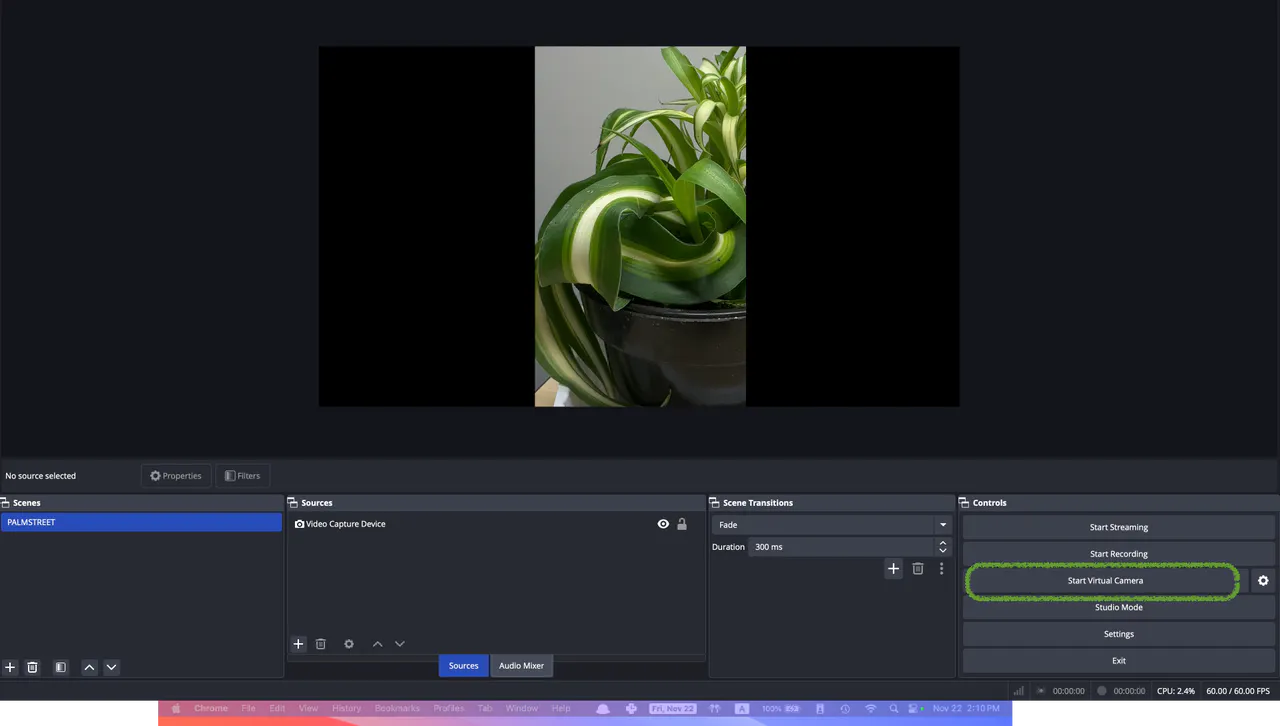
- Click the Start Virtual Camera button in OBS.
- Head back to the Seller Hub to confirm everything is running smoothly.
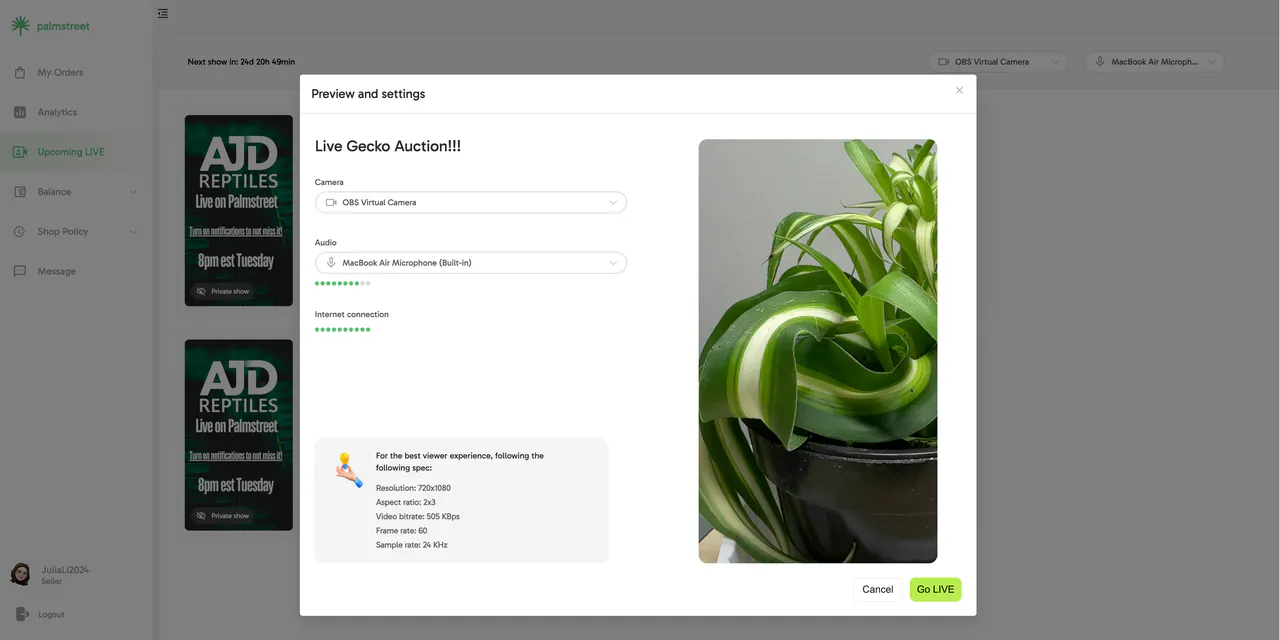
- Tap "GO LIVE" to start streaming your show.
Troubleshooting Tips & Tricks:
To ensure your OBS canvas displays correctly on your Palmstreet stream, resize the source you added by scaling it down slightly and positioning it in the center of the canvas. Once the main source is aligned and stretched to cover the top and bottom edges of the canvas, it will accurately reflect what viewers will see on your Palmstreet stream.

OBS allows you to create a professional streaming experience for your Palmstreet live shows, ensuring your audience gets the best quality content. Dive in and explore the endless possibilities!
FAQ
Q: What if I can't see the OBS Virtual Camera on my Mac?
A: If you're using a Mac and the OBS Virtual Camera is not appearing in your browser, you may need to enable it through your system settings:
- Open System Settings on your Mac.
- Go to General > Login Items & Extensions.
- Select Camera Extensions.
- Toggle OBS to the “On” position.
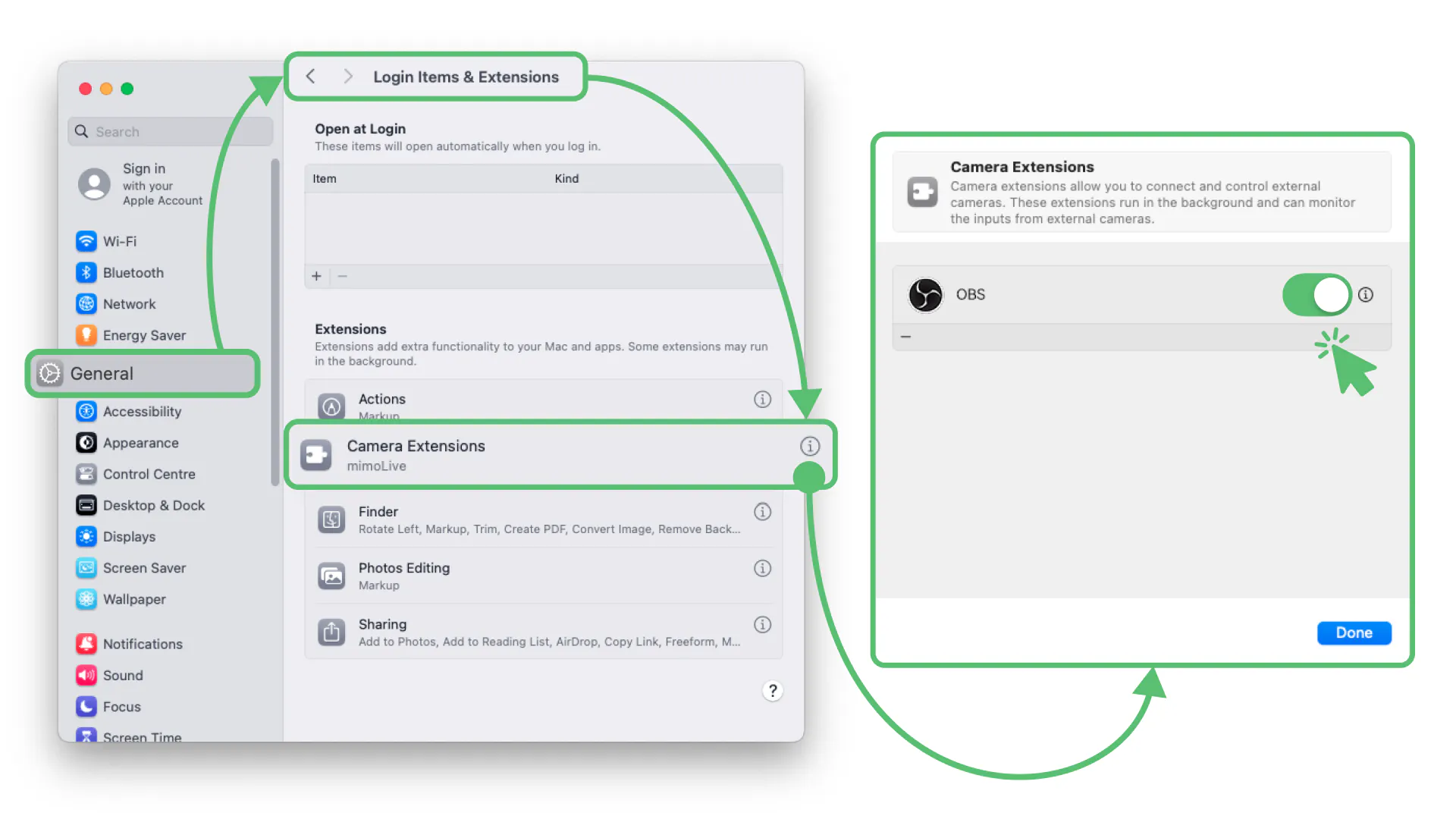
After completing these steps, restart both OBS and your browser. You should now be able to select OBS Virtual Camera as your video source.